
Guide for teachers and schools
Virtual museums and virtual exhibitions in teaching: how to make them and ideas for use
What virtual museums and exhibitions are, their types and benefits for teaching history, geography, literature, the arts and STEM; steps to make a 3D virtual museum, free tools, lesson ideas and how to let students create their own exhibitions.
Quick summary
- A virtual museum is a display space in a digital environment, viewable on a computer or phone without going there in person.
- Three common types: 3D galleries, 360° tours and web-based exhibitions.
- A basic virtual museum involves choosing a theme, preparing images and captions, arranging them, adding narration and publishing with a QR code.
- Its greatest value comes when students explore, answer questions and create exhibitions of their own.
What is a virtual museum? What is a virtual exhibition?
A virtual museum is a space that displays artefacts, images and documents in a digital environment. Visitors open it in a browser or app, walk around the rooms and click each item to read captions, hear narration or watch videos. A virtual exhibition is similar but usually centres on one theme, for a period of time, with a moderate amount of content.
In schools, a virtual museum can be a digital version of a real museum, or a gallery built by teachers and students: the school's tradition room, a history topic, the class's learning products.
Benefits of virtual museums in teaching
Virtual museums in history teaching
Students observe artefacts and documents in chronological order and ask about context instead of just memorising events.
Geography and local studies
Display landscapes, local products and craft villages by region; combine maps and 360° photos so students feel they are there.
Literature and the arts
Galleries illustrating literary works and author portraits, exhibitions of students' drawings, photos and writing.
Showcasing STEM projects
Each group gets a booth with its product, process photos and test videos, for parents and other schools to see.
Beyond travel limits
Classes that cannot go on field trips still get the experience; students can revisit it at home as often as they like.
Common types of virtual museums and virtual galleries
3D galleries
One hall or several rooms built in 3D; visitors move as in a game, with pictures on the walls and artefacts on plinths. This is what people usually call a 3D virtual museum.
360° tours
Stitched from panoramic photos of a real space, with hotspots to change rooms and open information. Suits heritage sites, tradition rooms and existing museums.
Web-based exhibitions
Content pages arranged by theme; each item has a large image, caption and audio. Easy to make, light and works well on phones.
With 3D models
Key artefacts built as 3D models that rotate and zoom, placed in a gallery or web page.
How to make a 3D virtual museum: steps from idea to publishing
Whatever tool you use, creating a virtual museum or exhibition goes through the steps below. Preparing the content usually takes the most time and matters most for quality.
Step 1: Choose the theme and audience
A clear theme such as “Our hometown through the ages”; decide whether viewers are students of a certain grade, parents or visitors.
Step 2: Collect and prepare images
Choose sharp, well-lit images with consistent proportions; take your own or use permitted sources with full credit; crop and colour-correct before uploading.
Step 3: Write short captions
Each item gets a name, a date, a few lines of introduction and one open question. Short captions are easier to read than long paragraphs.
Step 4: Arrange the space
Split content into rooms or zones following the storyline; give a clear path with a start and an end.
Step 5: Add audio narration
Record voice-over for the introduction and key items; students can take part in reading it.
Step 6: Publish and create a QR code
Test on phones and computers, share the link, print the QR code for the classroom or tradition room, or send it to parents.
Free virtual museum websites and when to go professional
There are many free tools teachers can use to create virtual exhibitions. Artsteps is one many teachers use to build 3D galleries, dragging pictures onto walls without coding. You can also use website builders, presentation software or 360° photo-stitching apps.
Free tools suit a single lesson or a small project. Consider a professional build when you need:
A custom-designed 3D hall
A space with the school's or locality's architecture, colours and emblems instead of a stock room.
Your own domain and brand
A short, long-lasting link that does not depend on a personal account or platform ads.
Smooth performance on phones
Optimised images, models and audio that open quickly on low-end phones and weak networks.
Many rooms and much content
A museum with several zones and hundreds of items that is updated often yet stays easy to manage.
Multiple languages and statistics
Bilingual narration for foreign visitors, and view and QR scan statistics to report impact.
Lesson ideas with virtual museums
“Museum detective” worksheet
Students tour the virtual museum and find the item that answers each question, such as “What was this object used for?”.
Young tour guides
Each group takes a room, researches it and presents it to the class like a guide.
Then and now
Place old photos next to current ones of the same place or object; students describe what changed and why.
Prepare for a real visit
View the virtual museum first to raise questions, then return after the trip to add what was observed.
End-of-topic review
Attach quiz questions and crosswords to each item so students revise as they walk around.
Letting students create their own virtual exhibitions
When students make an exhibition, they must select, organise, caption and present, so they learn far more deeply than by just viewing.
Set an achievable theme
Primary: “Our grandparents' toys”; secondary: a historical period, a geographic region, an author.
Share roles in the group
Image collector, caption writer, narrator and gallery arranger.
Set assessment criteria upfront
Accurate content, clear captions, full credits, logical layout, confident presentation.
Mind information safety
Do not include clear photos of faces, full names or addresses of students without their family's consent.
Open the exhibition to parents
Send the link and QR code so parents can view and leave comments, motivating students.
Using a virtual museum for initiatives, projects and contests
Virtual museums and galleries suit many initiatives, learning projects and contest entries, because reviewers can open them at once and try them themselves.
The unit's own content
Favour materials, artefacts and stories from your own school, class or locality; this is what sets you apart.
Linked to teaching
Include worksheets, lesson plans and photos of students using it to show the museum is really used.
Clear link and QR code
State them in the submission and test them on several devices before submitting.
Read the rules carefully
Some contests require authors to do everything themselves; identify which parts may get technical support.
Frequently asked questions
What is a virtual museum?
It is a space displaying artefacts, images and documents in a digital environment, where visitors walk around and click items to read, hear and see information on a computer or phone.
What is the simplest way for a teacher to make a 3D virtual museum?
Pick a small theme, prepare 10 to 20 sharp images with short captions, use a free tool such as Artsteps to drag them into a gallery, then share the link and QR code.
Can an Artsteps virtual museum be viewed on a phone?
It can be opened in a phone browser, but speed and smoothness depend on the device and network. Test it on a few phones before using it with the whole class.
How is a virtual exhibition different from a virtual museum?
The two are close. A virtual museum is usually long-term with lots of content; a virtual exhibition usually follows one theme or event and is smaller in scale.
Can primary students create their own virtual exhibitions?
Yes, with a familiar theme and teacher guidance. They can take photos, write short captions and read narration, while the teacher helps put everything into the gallery.
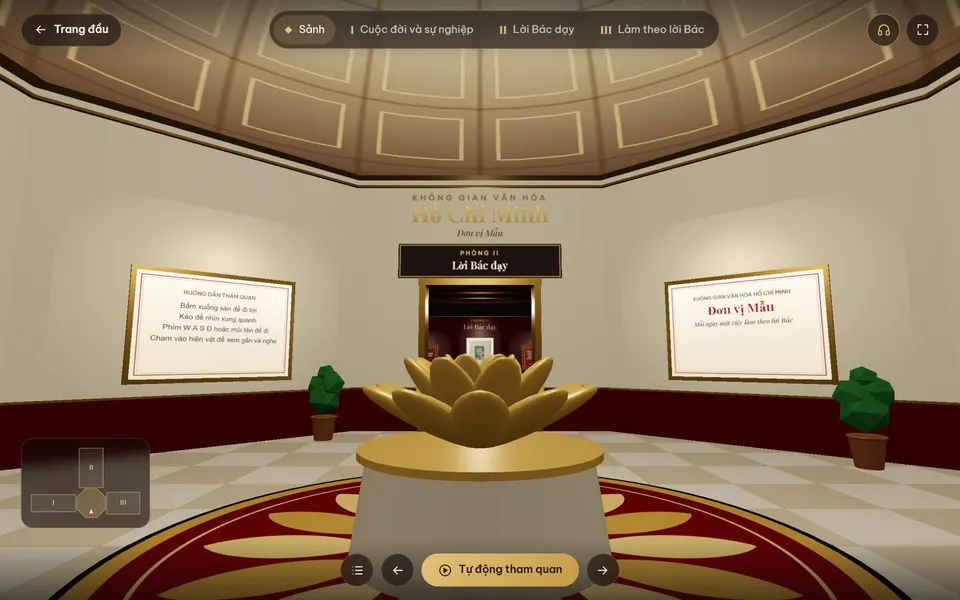 Digital exhibition
Sample product
Ho Chi Minh Cultural Space 3D/VR360 digital exhibition
Try a similar digital product live on a computer or phone. Real products are built around your own idea.
View demo (opens in a new tab)Need a custom virtual museum or 3D exhibition for your school?
We suggest ideas and work with you to build digital products: 3D exhibitions, 360° tours, audio narration, games and QR codes, usually within 3–10 days.
Related articles
See all articlesDigital teaching equipment
What digital teaching equipment is, how it differs from digital learning materials and what forms it takes; examples for preschool, primary grades 1–5, maths, science, English, history and geography, how to use it in class and steps to make a contest entry.
ReadDigital heritage room
The role of a school heritage room, what it includes, steps to build it and collect materials, decoration ideas for primary and secondary schools, and how to bring it online with 3D, 360° and QR codes.
ReadHeritage digitization, red addresses
What heritage digitization is, its forms and why it matters for education and tourism; how to build a digital map of red addresses, 360° virtual tours, QR codes and audio guides step by step, and how to use digital heritage in lessons and Youth Union and Pioneer activities.
Read